Setting Up Your Obsidian Daily Review System
The Daily Review process helps you stay grounded, intentional, and proactive — every single day. By combining Obsidian’s core plugins with powerful optional tools like Dataview, you’ll create a system that reflects the Squared Away Life philosophy: preparedness as peace of mind.
This guide walks you through setting up your Obsidian environment and understanding how your daily review queries work.
Step 1: Download Our Sample Files
Step 2: Enable Core Plugins
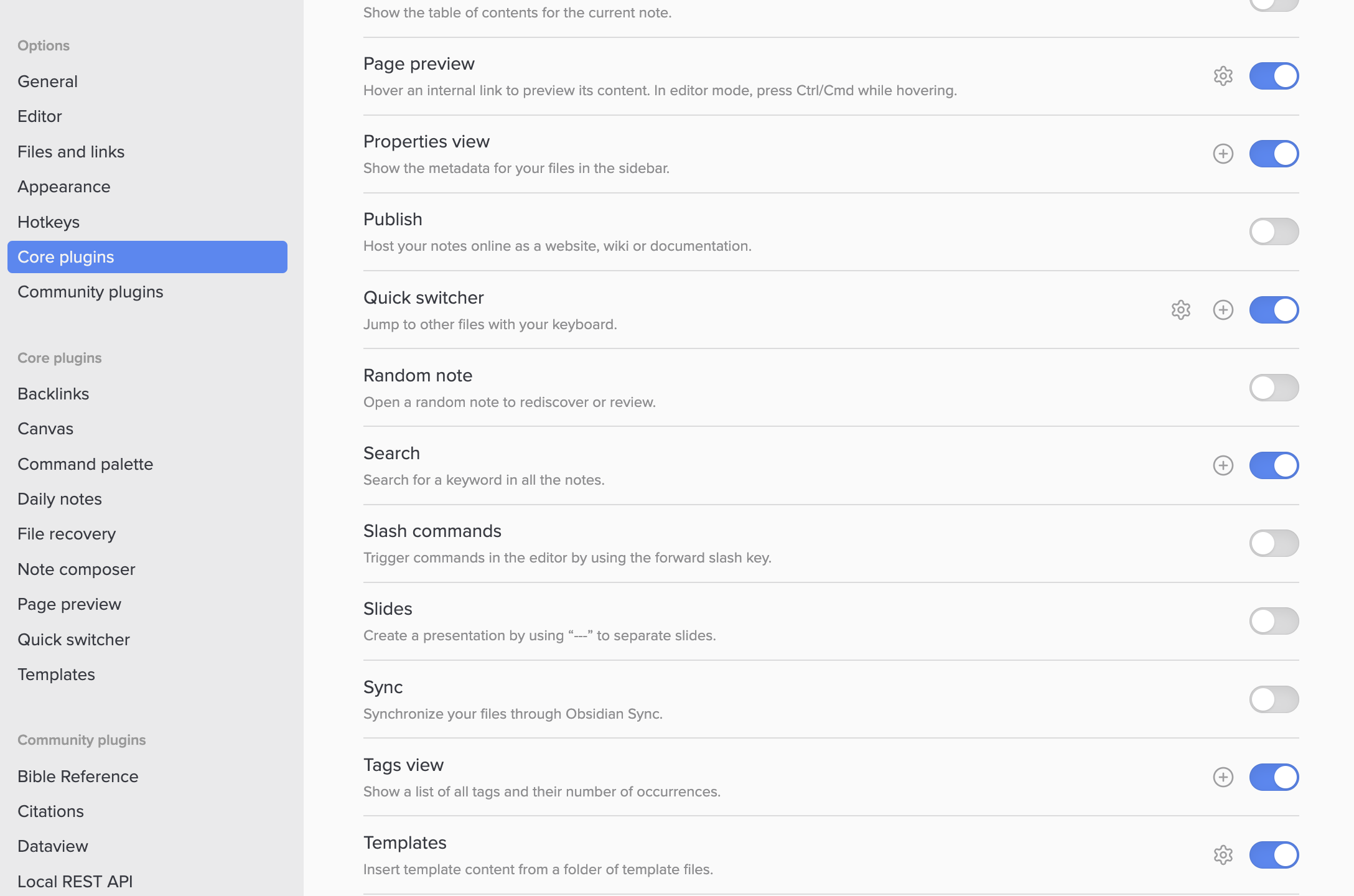
Your Daily Review setup uses three essential core plugins in Obsidian: Templates, Daily Notes, and Bases.
1. Templates
Templates automate structure and consistency in your daily notes.
- Go to Settings → Core plugins.
- Turn on the toggle for Templates.
- In the left sidebar, go to Options → Templates.
- Set the Template folder location to your Templates folder.
- (Optional) Adjust your date and time formats if you want a different style than YYYY-MM-DD and HH:mm.
2. Daily Notes
The Daily Notes plugin automatically creates a note for each day — perfect for journaling, task capture, or reflection.
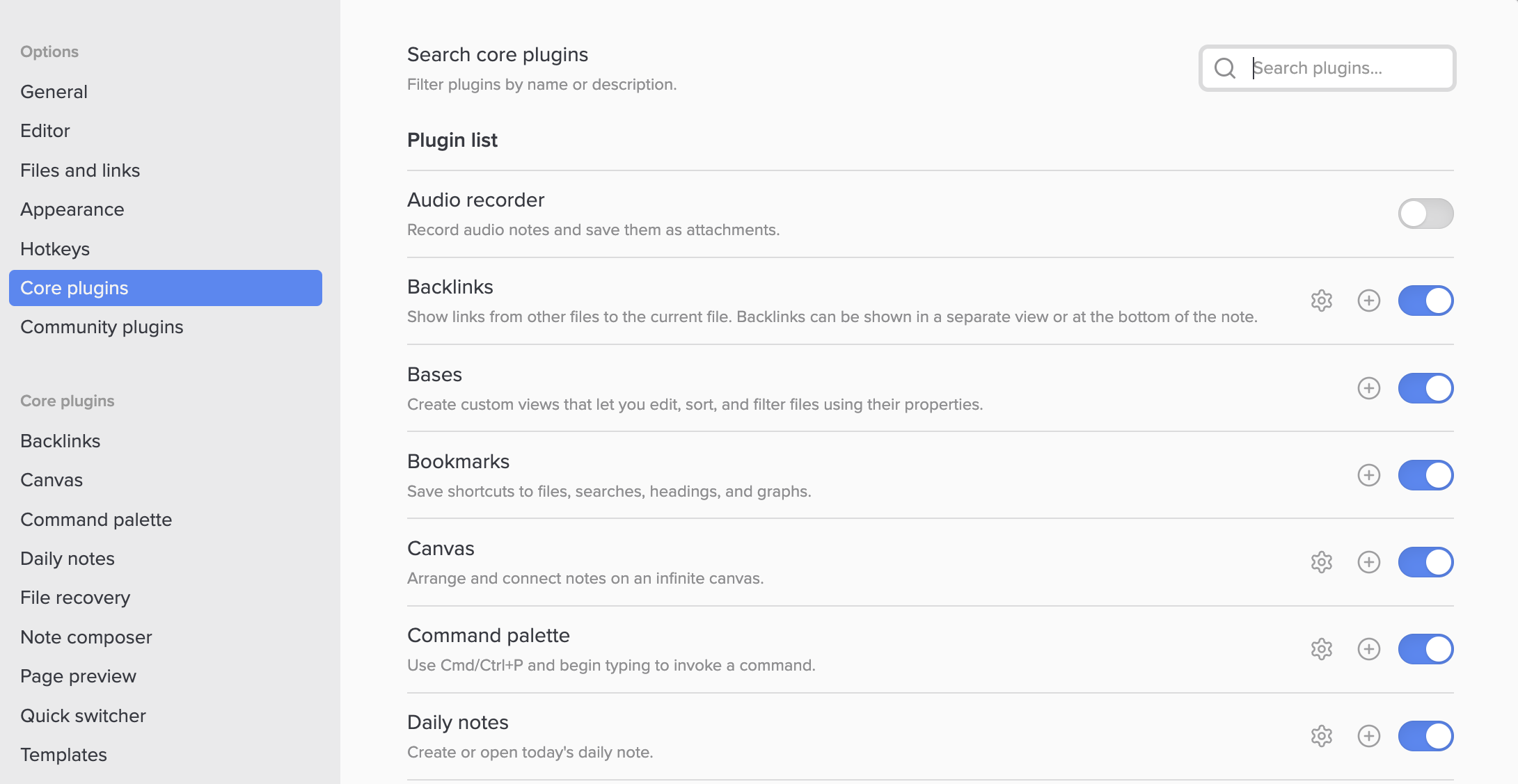
- Go to Settings → Core plugins.
- Enable Daily notes.
- Go to Options → Daily notes (it appears once enabled).
- Choose your folder for daily notes (for example, /Daily Notes/).
- Select your template file (choose your Daily Note template from the Templates folder).
3. Bases (a newer core plugin)
Bases allows you to create dynamic tables and filtered views of your notes — similar to Dataview, but natively supported by Obsidian.
- Go to Settings → Core plugins.
- Turn on the toggle for Bases.
- No further setup required — you’ll use it directly inside your notes with table blocks.
Step 3: (Optional) Install the Dataview Community Plugin
If you’d like more advanced data views, you can install Dataview as an alternative or companion to Bases.
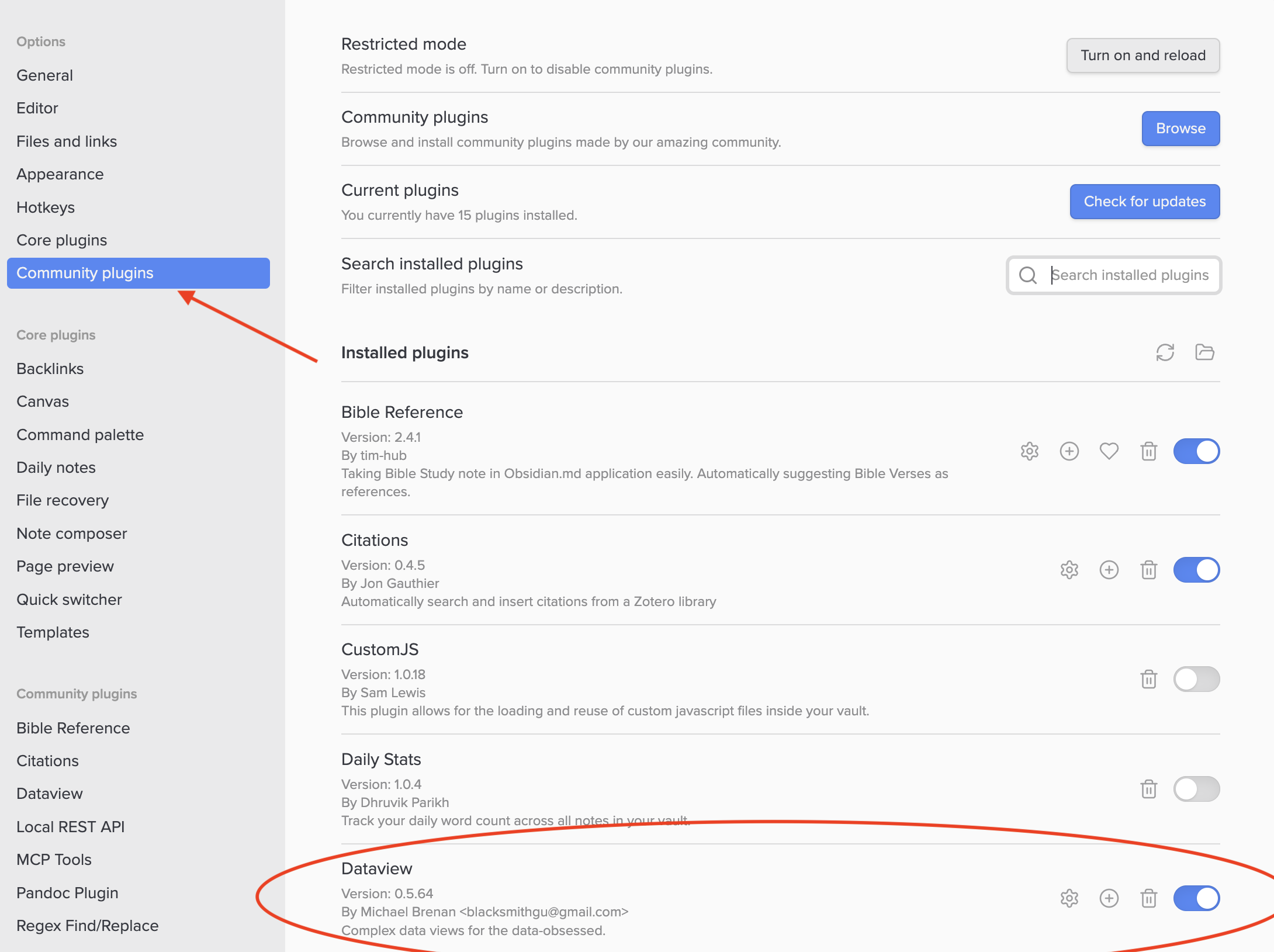
- Go to Settings → Community plugins.
- Ensure Restricted mode is off.
- Click Browse, search for Dataview, and click Install.
- After installation, make sure Dataview is toggled on under Installed plugins.
Step 4: Understanding the Daily Note Template
This section of your template adds navigation and structure to your Daily Note so you can move effortlessly between days and capture thoughts throughout the day with time-stamped clarity.
Daily Note Navigation
At the top of your note, you’ll see this line:
`$= dv.pages('"Journal"').where(p => p.file.ctime < dv.current().file.ctime).sort(p => p.file.ctime, 'desc').limit(1).file.link ` ← `$= dv.current().file.name ` → `$= dv.pages('"Journal"').where(p => p.file.ctime > dv.current().file.ctime).sort(p => p.file.ctime, 'asc').limit(1).file.link `
This uses Dataview’s inline query syntax to automatically generate links between your journal entries. When you open today’s note, it will display something like this:
[[2025-10-11]] ← 2025-10-12 → [[2025-10-13]]
- The left link points to your previous Daily Note.
- The center text displays today’s note name (usually the current date).
- The right link points to your next Daily Note (if it exists).
This creates seamless navigation through your journal — allowing you to scroll back or move forward in time without breaking your flow.
How It Works
The inline Dataview queries are filtering and sorting your notes based on their creation dates:
- The first query finds the most recent note created before today’s.
- The second query shows the current note’s name.
- The third query finds the first note created after today’s.
Together, they form a dynamic timeline of your journal entries.
There’s no need to manually link pages — Dataview handles it automatically as long as your Daily Notes are stored in the same folder (for example, “Journal”).
The Log Section
Below the header, your template includes this:
# Log {{time:HH:mm}} —
This section uses the Templates plugin to insert the current time each time you add a log entry.
When you run the Insert Template command or trigger your Daily Note, Obsidian will replace {{time:HH:mm}} with the actual time — for example:
# Log 08:42 — Morning reflection on priorities 13:15 — Debrief after client meeting 20:05 — Evening summary and assessment
I typically write much longer “log” entries, recording what I was doing, any lessons I learned, and how I felt. Each entry becomes a timestamped record of your day, helping you track thoughts, activities, and lessons in real time.
Step 5: Understanding the Daily Review Note
The Daily Review is the heart of your ongoing reflection process. It helps you look back on recent experiences, recognize patterns, and carry forward the lessons that matter.
This section of your vault can be built using either Obsidian Bases (the native tool) or the Dataview plugin (an advanced alternative). Both approaches produce the same outcome: a clear, dynamic table of notes that deserve your attention today.
The Daily Review Using Obsidian Bases
properties: file.ctime: displayName: Created file.name: displayName: Note views: - type: table name: Table filters: or: - file.ctime.date() == (today() - "7d") - file.ctime.date() == (today() - "1M") - |- file.ctime.day == today().day && file.ctime.month == today().month && file.ctime.year < today().year order: - file.ctime - file.name sort: - property: file.ctime direction: DESC columnSize: file.ctime: 215 - type: cards name: View
What This Does
This Bases configuration creates a table view of notes filtered by meaningful time intervals:
- One week ago — Reflect on what was happening seven days back.
- One month ago — Review longer-term progress or recurring patterns.
- This same day in previous years — Recall what was unfolding in your life on this date last year (or the years before).
Each of these time markers is an intentional checkpoint. By revisiting your own notes from these intervals, you train your awareness to recognize growth, recurring themes, and lessons that endure over time.
The results appear in a sortable table showing:
- The date created (file.ctime)
- The note name (file.name)
- Organized in descending order so your most recent reflections are easiest to find.
You can also toggle to a card view if you prefer a more visual layout.
The Daily Review Using the Dataview Plugin
TABLE WITHOUT ID file.link AS "Notes", file.ctime AS "Created" FROM -"Bible" AND -"Templates" WHERE dateformat(file.ctime, "yyyy-MM-dd") != dateformat(date(today), "yyyy-MM-dd") AND ( dateformat(file.ctime, "yyyy-MM-dd") = (date(today).year - 1) + dateformat(date(today), "-MM-dd") OR ( number(dateformat(striptime(date(today)), "X")) - number(dateformat(striptime(file.ctime)), "X")) >= 2592000 AND number(dateformat(striptime(date(today)), "X")) - number(dateformat(striptime(file.ctime)), "X")) <= 2678000 ) OR ( number(dateformat(striptime(date(today)), "X")) - number(dateformat(striptime(file.ctime)), "X")) > 518400 AND number(dateformat(striptime(date(today)), "X")) - number(dateformat(striptime(file.ctime)), "X")) <= 648000 ) OR dateformat(file.ctime, "MM-dd") = dateformat(date(today), "MM-dd") ) SORT file.ctime ASC
What This Does
This version uses Dataview’s query language to achieve a similar goal, but with more granular control.
Here’s what’s happening step-by-step:
- The FROM line defines where to pull data from.
- In this example, we’re excluding the “Bible” and “Templates” folders so they don’t appear in the review results.
- The WHERE block filters your notes to include:
- Notes from this same day in previous years
- Notes from about a week ago
- Notes from about a month ago
- The SORT command arranges them chronologically.
This generates a lightweight table showing each matching note’s link and creation date, like this:
NotesCreated
[[2024-10-12]]
2024-10-12
[[2025-09-12]]
2025-09-12
[[2025-10-05]]
2025-10-05
Step 6: Bringing It All Together
Once your system is set up:
- Use your Daily Note Template each morning to create a structured, mindful start to the day.
- Run your Daily Review note weekly to step back and see your trajectory.
- Let your queries guide — not dictate — your focus. They are reflections of your life in motion.
Closing Thought
By setting up this simple system, you’ll have a streamlined way to log your daily notes, capture lessons learned, and review them with intention. Instead of spending energy managing the overhead of organization, you’ll be free to focus on insight, growth, and meaningful contribution. When your systems run smoothly, your mind has space to create, connect, and lead with purpose.